This guide explains how to use Audit Trail to review legacy-style system events and current entity-change audit records in Migdafa Smart School.
Before you start
- Decide whether you need the older System Event Trail or the newer Change Audit ledger.
- Prepare a date range if you already know when the relevant change happened.
- Use user ID, event, or model filters when the audit window is large.
- Treat clear actions carefully because only system-event rows can be removed from this page.
Important: the clear action is available only in System Event Trail, and it requires both date fields before the purge confirmation can proceed. Change Audit is review-focused and is not cleared from this workspace.
Navigation path
Reports -> Audit Trail
Step 1: Open Audit Trail and choose the correct mode
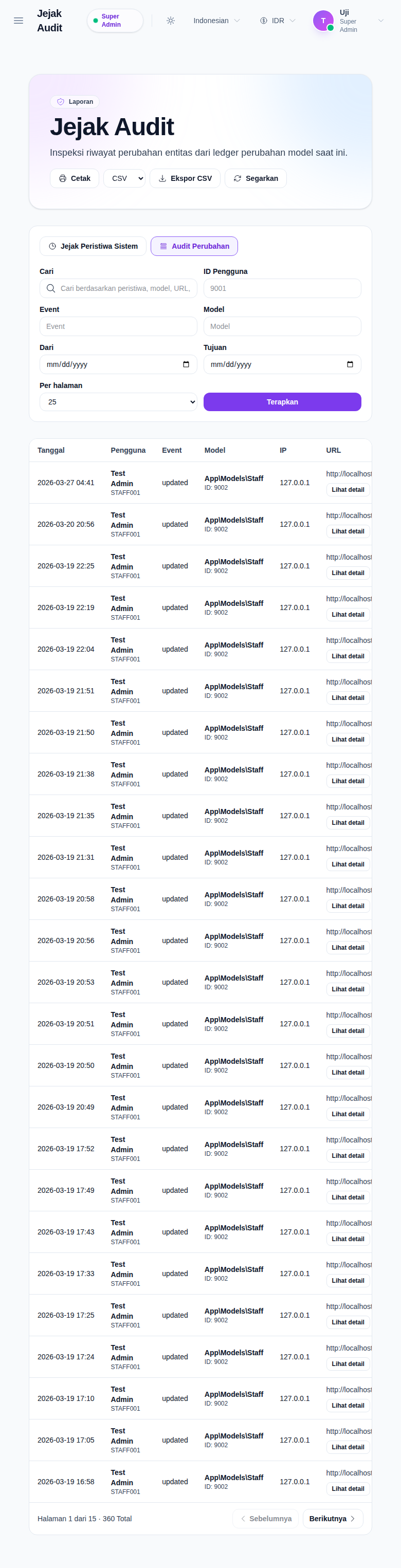
Open Audit Trail from the Reports menu. The page includes the report hero, export and print actions, a tab switcher, filters, and the results table.
The workspace has two modes:
- System Event Trail
- Change Audit
Use System Event Trail when you need older operational messages with action, platform, and agent context. Use Change Audit when you need model-level mutation history with event names, model references, IPs, and URLs.
Step 2: Filter the audit set before reading rows
The shared filters are:
- Search
- User ID
- From
- To
- Per page
- Apply
Mode-specific filters differ:
- System Event Trail uses an Action filter
- Change Audit uses Event and Model
The search box is broader than the explicit fields. In practice it can help you match message text, event names, model names, IPs, URLs, and user context depending on the selected mode.
Step 3: Read the table in the context of the active mode
When System Event Trail is active, the table shows:
- Message
- User
- IP
- Action
- Platform
- Agent
- Date
This mode is useful for legacy operational traces where the message and platform metadata help explain what happened.
When Change Audit is active, the table shows:
- Date
- User
- Event
- Model
- IP
- URL
This mode is stronger for entity-level investigations because it ties the event to a model type, model ID, and the URL that triggered the change.
Step 4: Open the Change Audit details drawer when you need field-level context
In Change Audit mode, each row includes View Details. Open it when a summary row is not enough.
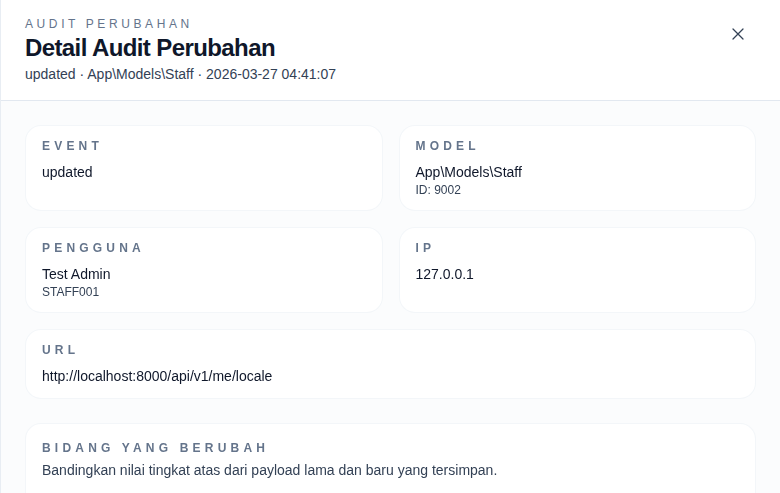
The drawer shows:
- event name
- model type and model ID
- user and employee ID when available
- IP address
- URL
- a top-level changed-fields table
- raw before and after payload blocks
This is the fastest way to confirm exactly which fields changed without leaving the report.
Step 5: Print, export, or clear the correct audit slice
The current workspace supports:
- CSV export
- XLSX export
- Refresh
If your role has the right permission, System Event Trail also shows Clear System Events.
Before a clear action can run:
- the mode must be System Event Trail
- From and To dates must both be present
- the purge confirmation explains that only matched system-event rows in the selected range will be removed
Use export or print for evidence sharing first. Use clear only when retention cleanup is explicitly intended.
Verify the result
Use this checklist after the review:
- confirm the selected mode matches the type of audit evidence you needed
- confirm the filters are narrow enough to explain the records shown
- confirm event, model, IP, and URL values match the incident or change you expected
- confirm the detail drawer explains the exact change when the summary row is not enough
Expected result: you can identify the relevant audit records, understand the actor and affected model or endpoint, and export or print the evidence without disturbing unrelated audit history.
Troubleshooting
| Issue | Likely cause | What to do |
|---|---|---|
| The wrong columns are showing | The wrong mode is active | Switch between System Event Trail and Change Audit before reading the table |
| The Model filter is missing | You are still on System Event Trail | Move to Change Audit to expose the model-specific filter |
| The drawer does not open | You are reviewing System Event Trail rows | Use Change Audit mode and click View Details on a change row |
| Clear System Events is unavailable | You are on Change Audit, missing dates, or lack permission | Switch to System Event Trail, fill both dates, and confirm your permission set |
| Search still returns too many rows | The query is too broad for the current data volume | Add user ID, event, model, or a tighter date range before applying again |