This guide explains how to start and monitor the Fees Carry Forward workflow.
Short summary
Use Fees Carry Forward when outstanding fee obligations must move from a source academic session into a target academic session. The current UI supports session-level setup and a log-based follow-up workflow.
Before you start
- Confirm the source session truly contains the balances that should move forward.
- Confirm the target session is the new academic destination.
- Decide whether an overdue-days threshold should restrict what gets carried forward.
- Prepare notes if your finance process requires an audit explanation for the rollover.
Navigation path
Fees Collection -> Fees Carry Forward
Step 1: Open Fees Carry Forward
In the sidebar, open Fees Collection and choose Fees Carry Forward.
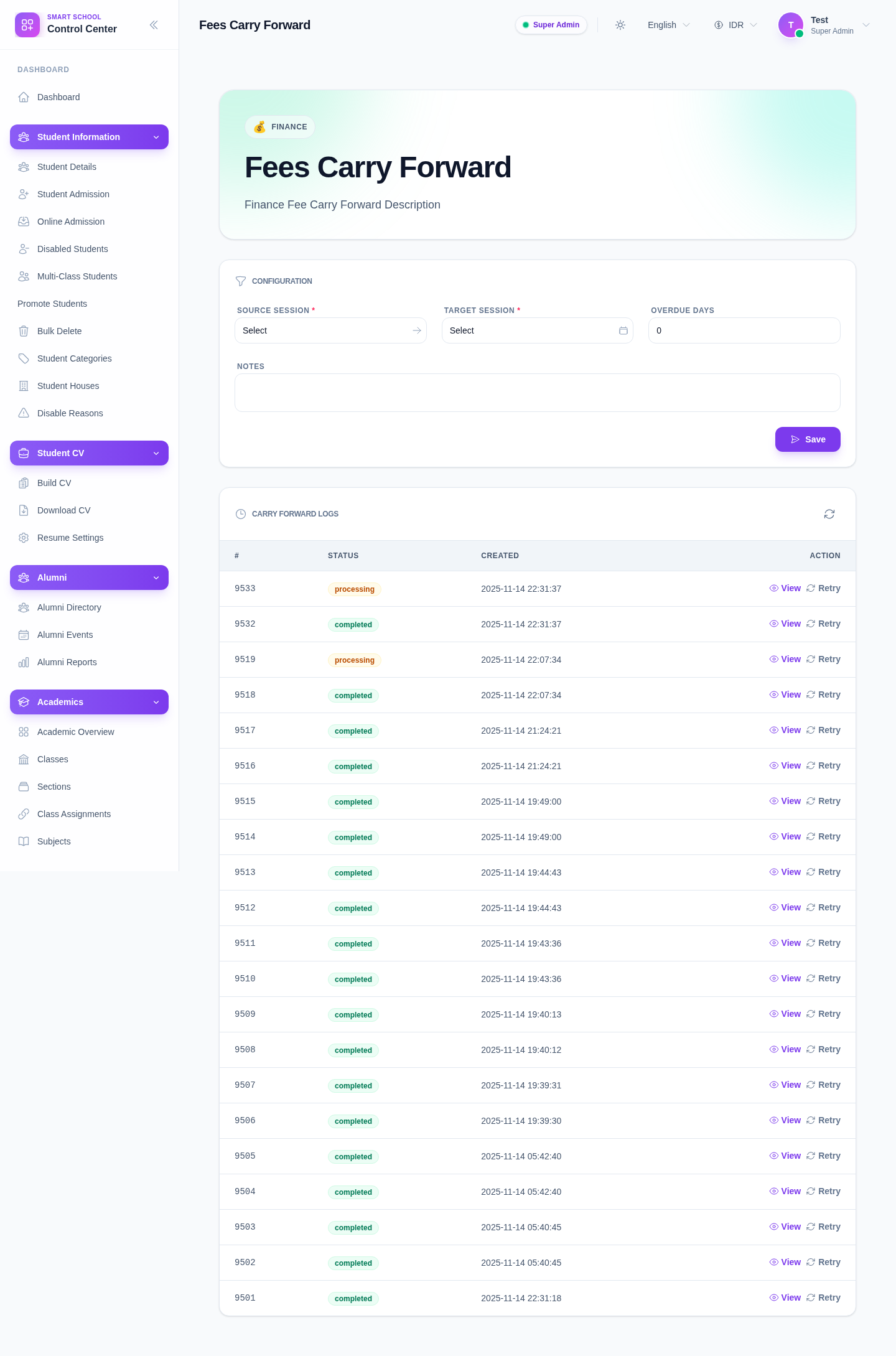
The current page exposes:
- Source Session
- Target Session
- Overdue Days
- Notes
- Save
- carry-forward logs with View and Retry
Step 2: Choose the source and target sessions
Set the two required session fields:
- Source Session
- Target Session
The source session should hold the balances being reviewed.
The target session should be the new session where the carried-forward balance needs to land.
Step 3: Add optional carry-forward constraints
Use the optional fields to narrow or explain the carry-forward run:
- Overdue Days
- Notes
Use Overdue Days when the policy only moves balances that have crossed a certain threshold.
Use Notes when the run needs a brief audit explanation.
Step 4: Submit the carry-forward run
After confirming the sessions:
- click Save
- wait for the submission result
- refresh the logs if necessary
This action starts the carry-forward job rather than instantly resolving every balance inside the same form.
Step 5: Review the carry-forward logs
Use the log table to monitor the result.
The current log area shows:
- log ID
- status
- created date
- View
- Retry
Use View to inspect log entries when you need to understand what happened inside a specific run.
Use Retry only when the previous run did not complete cleanly and the underlying configuration is still valid.
Important notes
Current-UI note: the shipped page currently exposes session-level controls plus notes and overdue-days filtering. Even though deeper payload support exists in the implementation layer, the public guide follows the actual visible UI and does not assume hidden class or section controls.
Local dataset note: the current local environment already contains multiple carry-forward logs in processing and completed states, which makes the log-monitoring workflow directly inspectable.
Verification checklist
- source and target sessions are correct
- overdue-days filtering, if used, matches policy
- notes are present when required for audit
- the submitted run appears in the log table
- the final log status is reviewed before assuming the carry-forward completed successfully
Troubleshooting
| Issue | Likely cause | What to do |
|---|---|---|
| Save should not be used yet | Required sessions are missing | Select both source and target sessions first |
| The wrong balances may move forward | Source or target session was chosen incorrectly | Recheck both session fields before saving |
| A run stays in processing or fails | The carry-forward job did not complete cleanly | Review the log entry and retry only after checking the cause |
| Staff expect immediate row-level results in the form | The workflow is log-driven | Use the logs and entry view to validate the result |