This guide explains how to create and review lesson-plan records from the Manage Lesson Plan workspace.
Short summary
Use Manage Lesson Plan to create lesson records tied to session, class, section, and subject context, then review existing lessons and their topic progress from the filtered lesson list.
Before you start
- Confirm the target Session, Class, Section, and Subject already exist.
- Confirm the lesson name is specific enough to be understood later by other staff.
- Decide whether you are creating a new lesson or reviewing existing lesson progress.
Navigation path
Lesson Plan -> Manage Lesson Plan
Step 1: Open Manage Lesson Plan
In the sidebar, open Lesson Plan and choose Manage Lesson Plan.
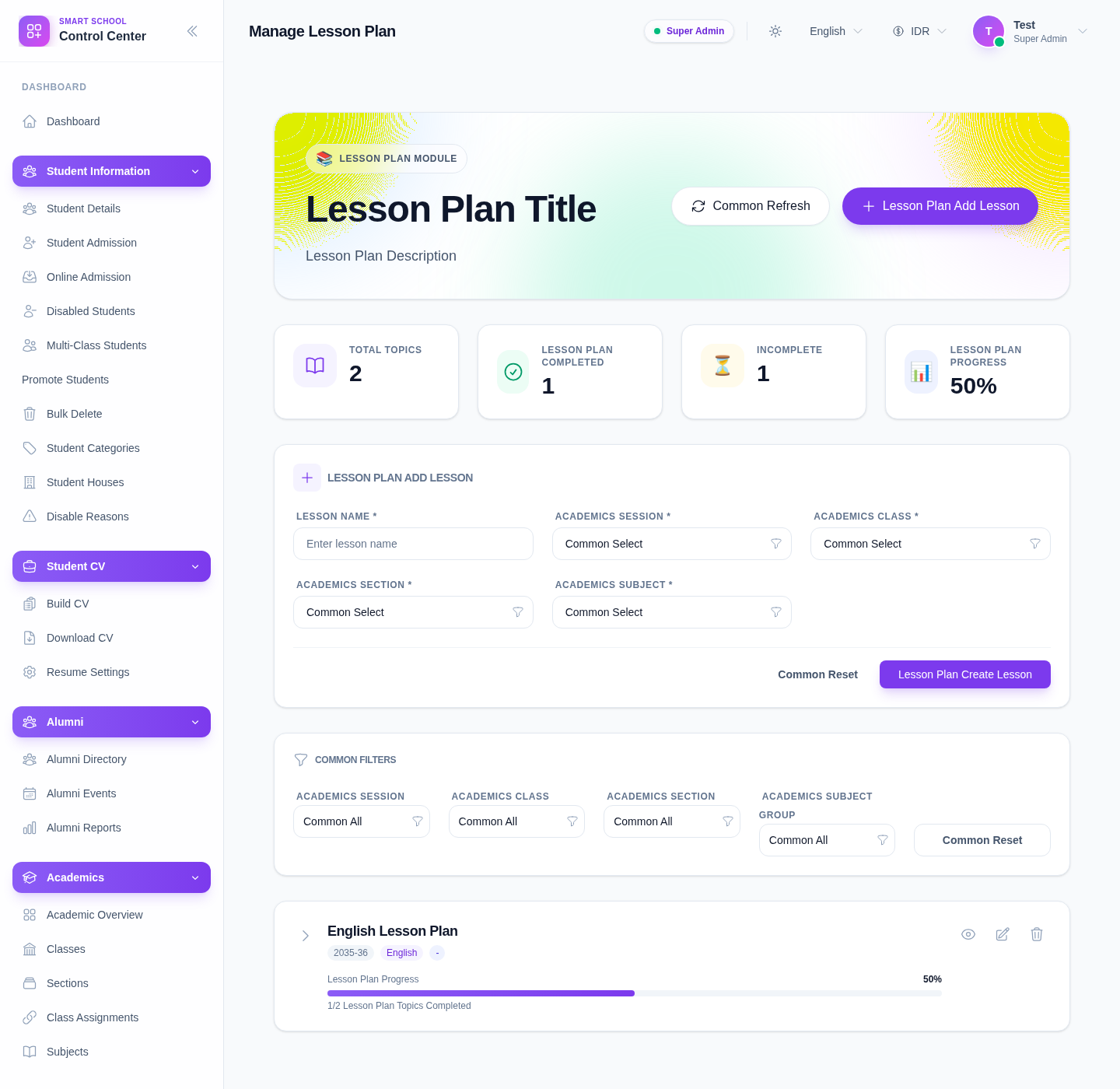
The page currently includes:
- a lesson-creation form
- a filter row for session, class, section, and subject context
- refresh and add controls
- a lesson list or empty state when no lessons match
Step 2: Fill the create-lesson form
The creation form expects:
- Lesson Name
- Academic Session
- Academic Class
- Academic Section
- Academic Subject
Treat these as a linked academic context. If class and section do not belong together, the lesson should not be created until that context is corrected.
Step 3: Create the lesson
After filling the form:
- click the create button for the lesson form
- wait for the success response
- confirm the form resets
- refresh the lesson list if needed
If the page already contains lessons, the new lesson should appear under the same academic context when filters match.
Step 4: Use filters to review the lesson list
The lesson list can be narrowed with academic filters.
Use them to answer questions like:
- which lessons exist in a specific session
- whether a class-section already has lesson coverage
- which subject still has no lesson rows
This is also the safest way to verify that a new lesson was saved to the expected class flow.
Step 5: Review lesson progress and details
When lessons are visible, use the list and any expand or detail controls to inspect:
- lesson identity
- topic counts
- completion progress
- whether the lesson belongs to the intended class-section and subject combination
Use Manage Syllabus Status next when you need to update topic completion rather than lesson metadata.
Important notes
Local UI note: the current local workspace is functional but still shows some translation-key-style labels in the hero and action area. The guide follows the verified controls and field meaning, not the unfinished copy polish.
Local dataset note: this page can stay in an empty-state when no lessons have been created for the filtered academic context. That is expected and should be read as a data condition, not automatically as a page failure.
Verification checklist
- lesson name is clear and specific
- session, class, section, and subject are aligned
- the lesson saves without class-section mismatch
- the lesson appears under the correct filters
- the lesson is ready for later topic tracking
Troubleshooting
| Issue | Likely cause | What to do |
|---|---|---|
| No lessons appear after saving | Filters do not match the saved lesson context | Reset or change the lesson filters |
| Section choice feels wrong for the class | Class-section mapping is incomplete or mismatched | Verify the academic mapping before creating the lesson |
| The page looks unfinished | Some local labels still render fallback text | Focus on the verified fields and saved output rather than label polish |
| Staff expect topic completion controls here | They are in the wrong lesson-plan surface | Use Manage Syllabus Status for topic status work |