This guide explains how to use the Payroll tab inside Finance Reports. In the current Laravel and Vue product, this tab is a finance-side payroll summary, not the full HR payroll workspace.
Before you start
- Decide the date range you want to summarize.
- Understand that this report summarizes finance-side payroll totals by month.
- Use the HR Payroll workspace when you need employee-level payroll actions, payslip generation, or row-by-row review.
Important: the Payroll tab inside Finance Reports is a summary report only. It is built from staff payslip records and currently follows the paid-payslips-only policy when the `status` column is available.
Navigation path
Reports -> Finance Reports -> Payroll
Step 1: Open Finance Reports and switch to Payroll
Open Finance Reports from the Reports hub, then choose the Payroll tab.
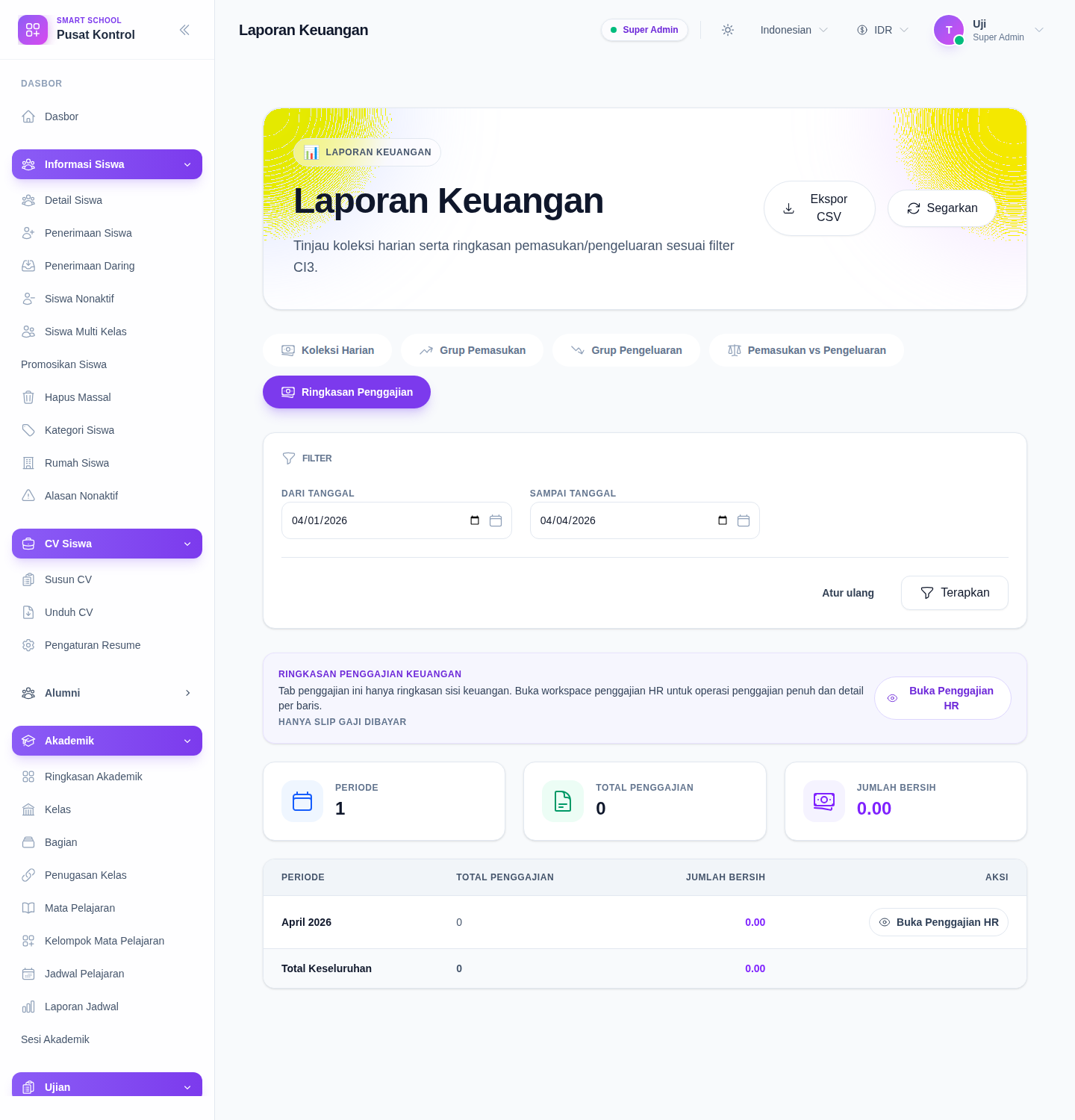
Step 2: Set the date range
Use the shared finance report filters:
- From Date
- To Date
Then click Apply Filters to reload the payroll summary for that range.
Use Reset when you want to return to the default current-period range.
Step 3: Read the finance payroll notice
At the top of the Payroll tab, the current UI shows a finance-only notice that explains:
- this tab is a finance summary
- the summary is limited to the finance-side reporting view
- the HR Payroll workspace is the right place for full payroll operations
If your account can access HR payroll, the same panel shows Open HR Payroll as a handoff action.
Step 4: Review the summary cards
The Payroll tab currently shows three summary cards:
- Periods
- Total Payrolls
- Net Total
These cards summarize the rows currently loaded for the selected date range.
Step 5: Review the monthly payroll table
Below the summary cards, the report shows one row per payroll period with:
- Period
- Total Payrolls
- Net Total
- Open HR Payroll action when permission is available
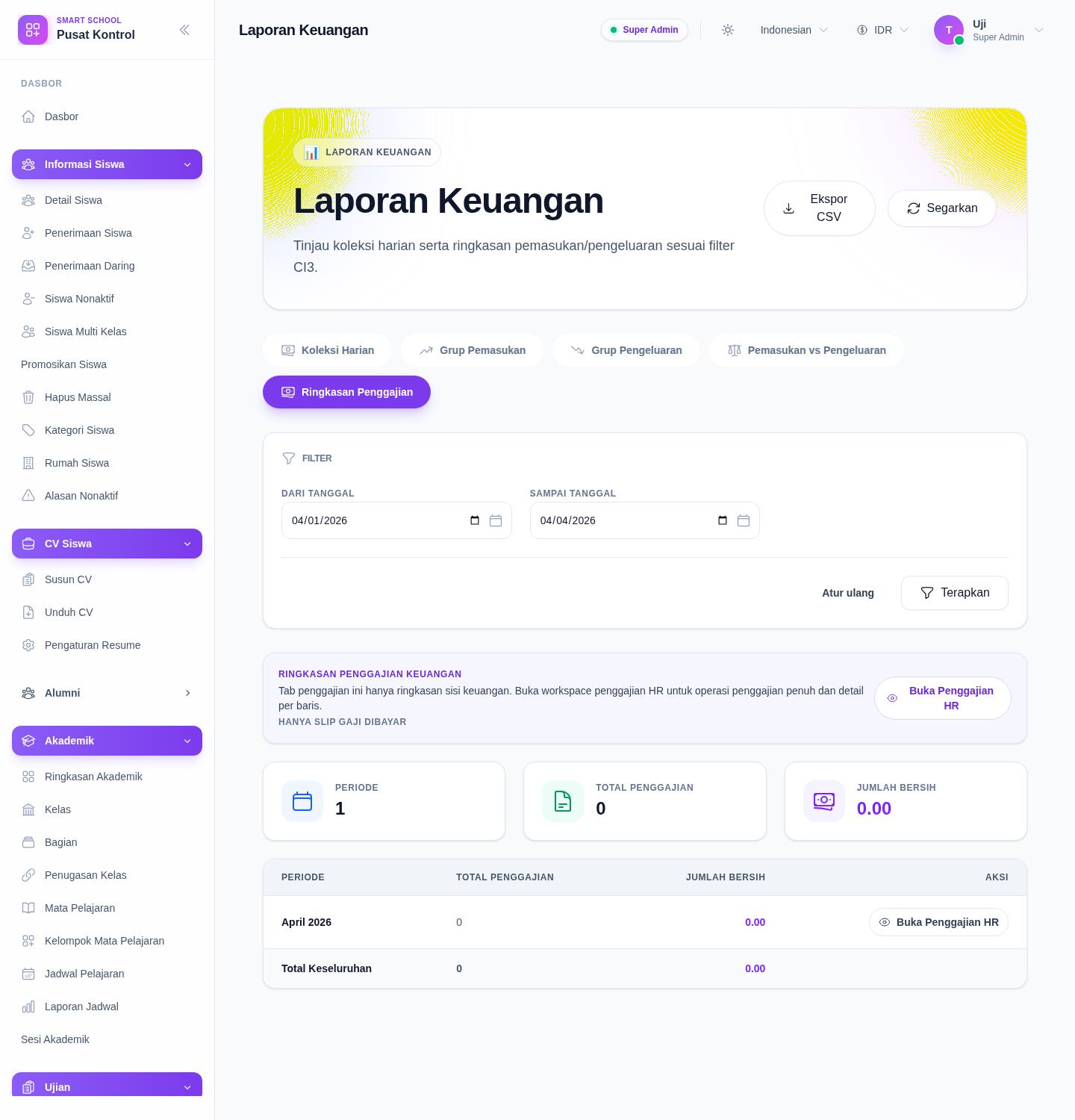
Use this table when you need a finance-facing monthly payroll summary rather than staff-level payroll operations.
Step 6: Export or hand off when needed
The Finance Reports header still provides Export CSV for the active tab, so the Payroll summary can be exported from the same console.
Use Open HR Payroll when:
- you need row-level payroll parity
- you want to inspect the payroll month in the HR workspace
- you need employee-level payroll actions instead of summary totals
Verify the result
- the Payroll tab is active inside Finance Reports
- the date range matches the payroll period slice you intended
- the summary cards reflect the loaded period rows
- the monthly table and grand total row match the selected range
- the HR payroll handoff opens only when your role allows it
Expected result: the Finance Reports console shows the payroll summary for the selected date range and lets you export the summary or hand off into the HR payroll workspace.
Troubleshooting
| Issue | Likely cause | What to do |
|---|---|---|
| The Payroll tab looks empty | No paid payslips match the selected range | Broaden the date range or verify that payroll records exist for that period |
| Totals look lower than expected | The summary is using paid payslips only | Confirm the status policy note shown at the top of the tab |
| You cannot open HR Payroll | Your role does not include HR payroll viewing permission | Ask an administrator to check staff_payroll.view access |
| The report is too high-level | This screen is summary-only by design | Open the HR Payroll workspace for employee-level payroll operations |