This guide explains how to use Hostels to manage the top-level boarding structures that group room inventory and later occupancy work.
Short summary
The Hostels page combines search and status filters, a hostel table, and a create or edit drawer for the boarding facilities themselves. This sits above room types and room-level setup.
Before you start
- Decide whether the hostel should be Girls, Boys, or Combine.
- Prepare the hostel name, address, and intake capacity before creating the record.
- Confirm whether the hostel should remain active in the current boarding structure.
Navigation path
Hostel -> Hostels
Step 1: Open Hostels
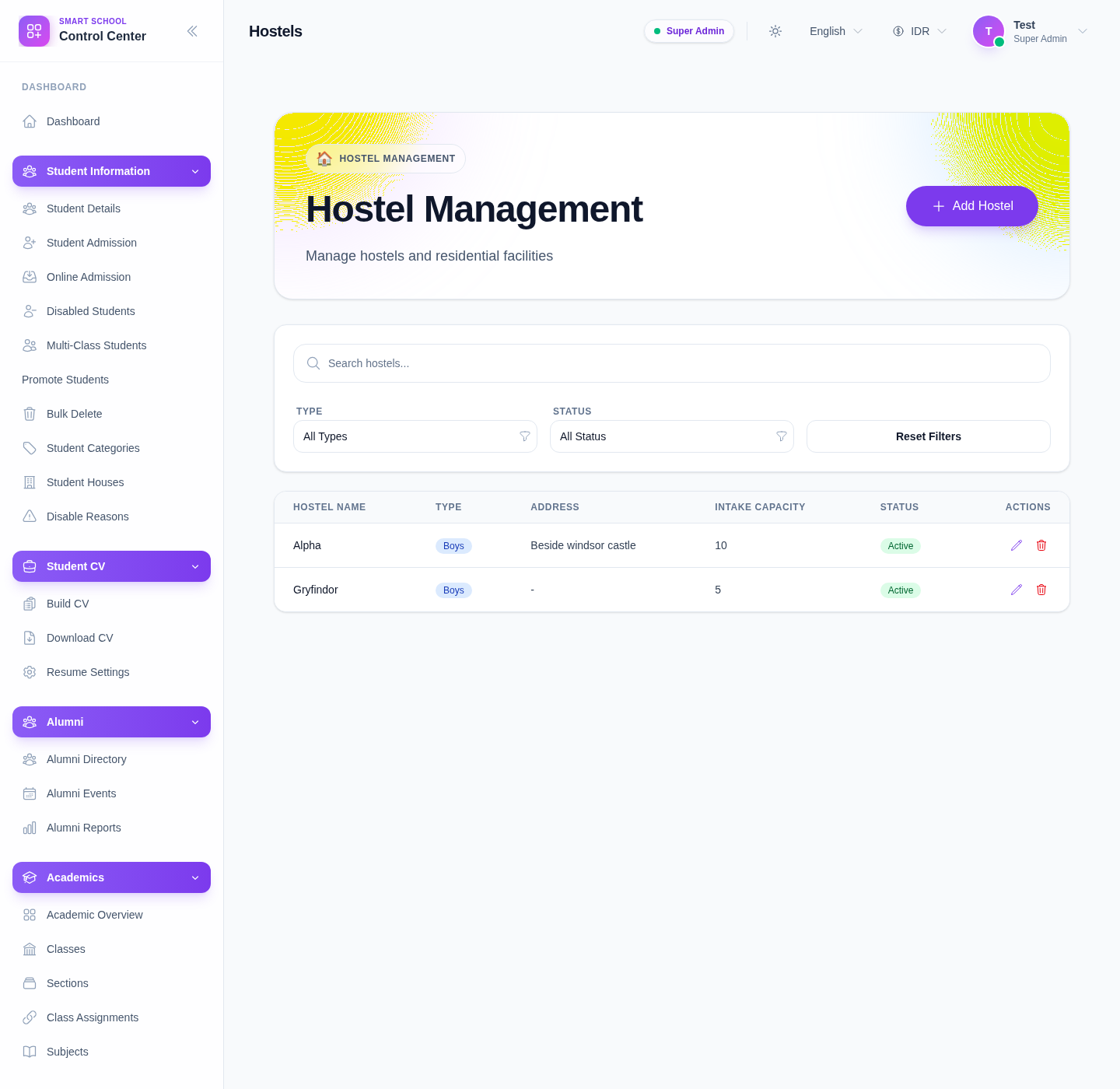
In the sidebar, open Hostel and choose Hostels.
Step 2: Filter the hostel list
The current filter area includes:
- search
- Type
- Status
- Reset Filters
Use filtering first when the list contains many boarding facilities or when you need to isolate inactive or one-type-only records.
Step 3: Create a hostel
Click Add Hostel to open the form drawer.
The current drawer supports these operational fields:
- Hostel Name
- Type
- Address
- Intake
- Description
- Active state
Use intake carefully, because this is one of the clearest capacity signals available at the hostel level.
Step 4: Review the hostel table
The table currently shows:
- Hostel Name
- Type
- Address
- Intake Capacity
- Status
- Actions
Use the list to confirm whether the hostel is active, how it is categorized, and whether its basic capacity information still matches reality.
Step 5: Edit or delete a hostel carefully
Use the row actions to:
- update hostel details when the boarding structure changes
- delete only when the hostel record should no longer exist in the active setup
Because hostels sit above room-level management, treat deletion as a structural action rather than a cosmetic cleanup.
Step 6: Recheck room-level setup after changes
After saving a hostel change, revisit Room Types or Hostel Rooms when needed so the higher-level hostel structure still makes sense in the room layer below it.
This is the simplest way to prevent the boarding hierarchy from drifting over time.
Verify the result
- the hostel appears in the table with the expected name
- type and status are correct
- intake capacity reflects the intended setup
- edits are visible immediately after save
- the hostel still fits the room-management structure underneath it
Troubleshooting
| Issue | Likely cause | What to do |
|---|---|---|
| Save fails | Required hostel fields are incomplete | Recheck hostel name, type, and intake before saving |
| The wrong hostel appears in the list | Filters are still active | Reset the filters and reload the list |
| Capacity information looks outdated | Intake was not updated after a boarding change | Edit the hostel record and correct the intake value |
| Deleting feels unsafe | Rooms or later assignments may depend on this hostel | Review room-level setup first, then remove the hostel only if the structure is truly obsolete |