This guide explains how to use the modern Online Examinations workspace as a report console. The current Laravel and Vue implementation keeps the online-exam list and the reporting modes on the same page.
Before you start
- Decide whether you need one exam report or a cross-exam summary.
- If you need exam-scoped reporting, identify the online exam first.
- If you need a time-window report, decide whether the date filter should use exam start date or exam end date.
Navigation path
Examinations -> Online Exams
Step 1: Open the Online Examinations workspace
Open Online Exams from the Examinations area.
The page combines:
- the online-exam workflow overview
- the online-exam card list
- the reporting console
Step 2: Use the report mode selector
The reporting console is driven by a report-mode selector rather than separate pages.
The current modes are:
- Result Report
- Exams Report
- Student Exams Attempt Report
- Exams Rank Report
Exam-scoped modes also expose:
- Exam
- Class
- Section
Cross-exam modes expose:
- Search Window
- Date Type
- optional period dates when you choose the period window
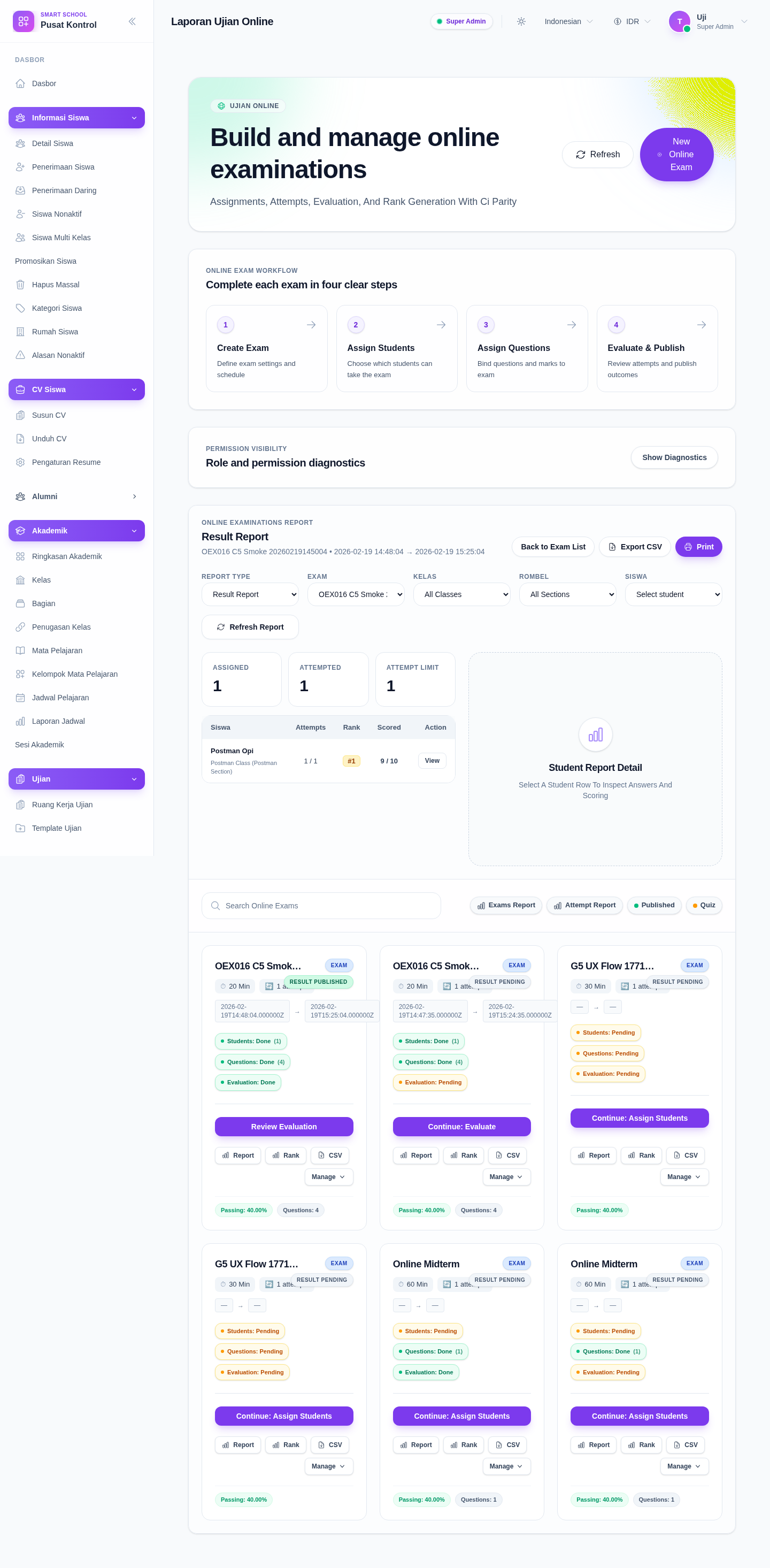
Step 3: Load an exam-scoped Result Report
Use Result Report when you need one online exam with:
- assigned-student count
- attempted-student count
- attempt-limit summary
- one student row per assigned record
- a selectable student detail area
The result mode supports:
- Export CSV
- class and section narrowing
- student-specific drilldown
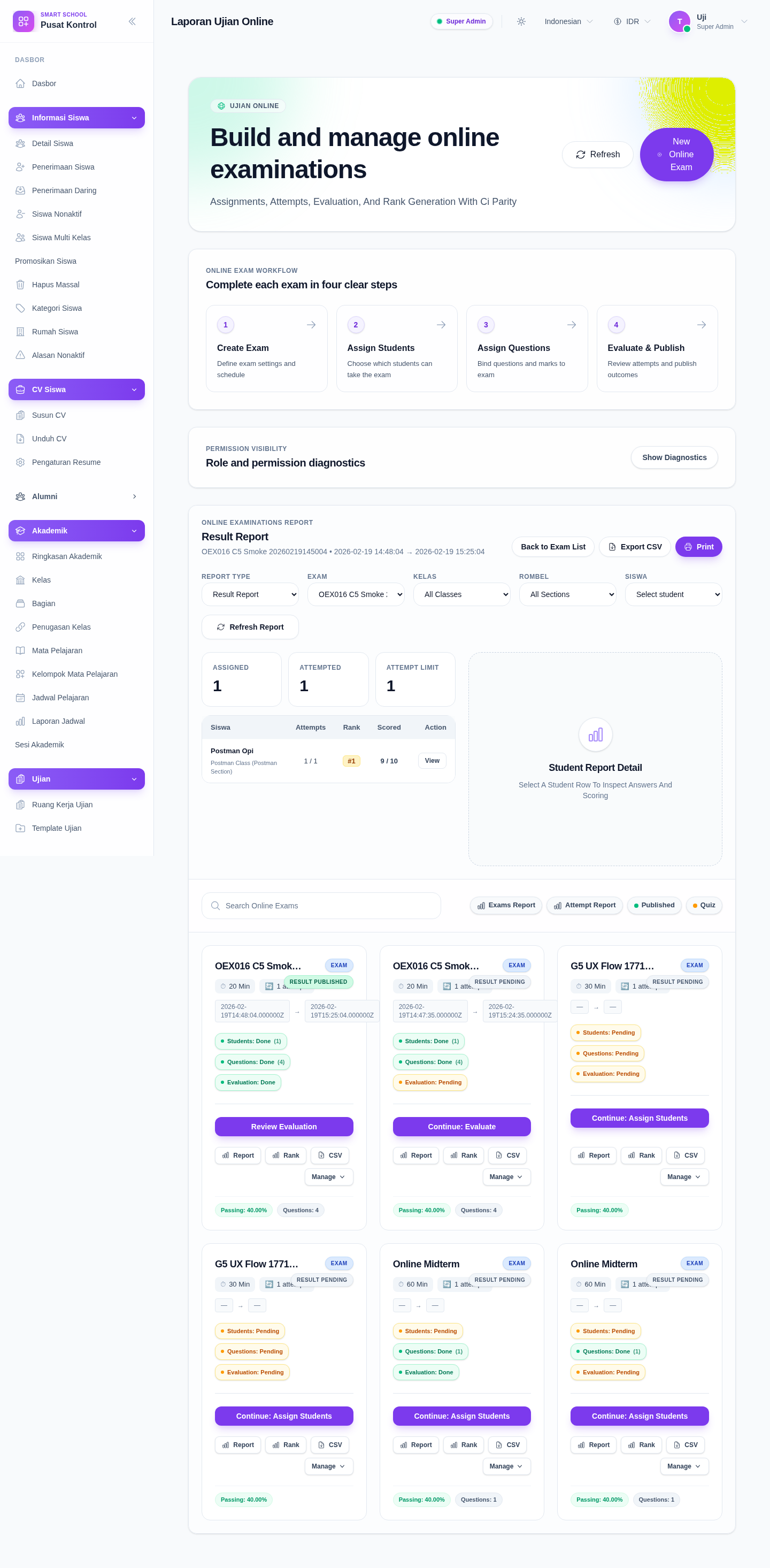
Step 4: Switch to another mode when you need a different reporting question
Use Exams Rank Report when you need ranked online-exam scoring for one exam.
Use Exams Report when you need a broader inventory of exams across a time window.
Use Student Exams Attempt Report when you need attempt visibility across exams and students.
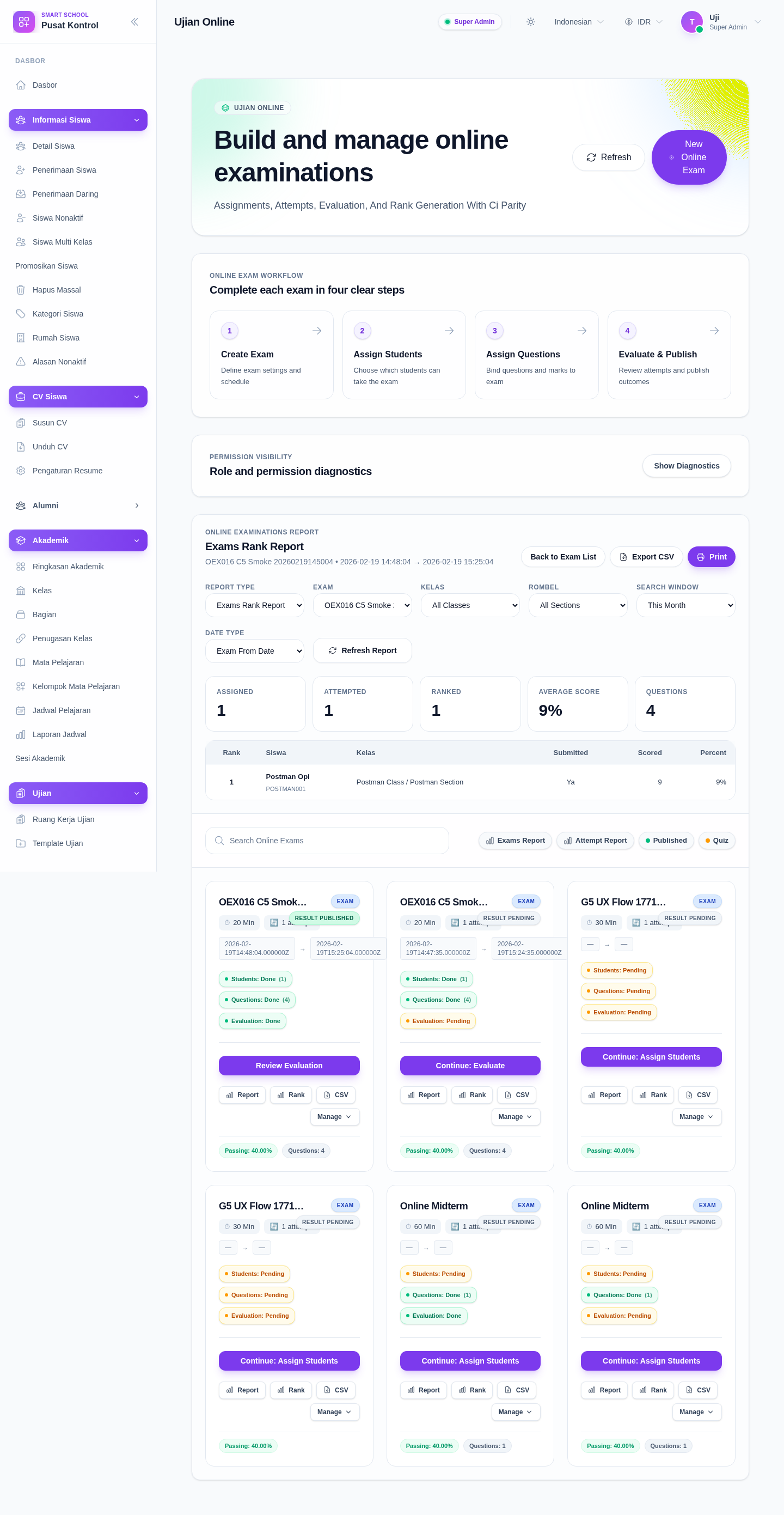
Step 5: Export or print the active report
The reporting console provides Export CSV and Print for the currently loaded mode.
Those actions always follow:
- the active report mode
- the selected exam, if the mode is exam-scoped
- the current class, section, student, or date-window filters
Verify the result
- the report mode matches the reporting question you started with
- the active exam is correct for exam-scoped modes
- the class, section, student, or date-window filters match the intended slice
- the summary cards and rows change when you switch modes
- the exported CSV or printed report matches the active mode
Troubleshooting
| Issue | Likely cause | What to do |
|---|---|---|
| The report does not load | An exam-scoped mode was selected without an exam | Select an exam first, then refresh the report |
| The wrong rows appear | The page is still using a previous mode or date window | Recheck the report type, search window, and date type before refreshing |
| The report is empty | No exams or attempts match the selected time window or exam filters | Broaden the window or switch to another report mode |
| Print or export looks different than expected | The action follows the active mode, not the card list below | Confirm the report mode and filters before printing or exporting |