This guide explains how to use Library Reports to review the overview analytics surface and the four legacy report branches that now live on one route-backed reporting page.
Before you start
- Decide whether you need the Overview dashboard or one table-driven report branch.
- Use filters before exporting, because queued exports inherit the active report state.
- Expect the available filters to change by tab. For example, due-date filters belong to the due report, while active-state filters belong to inventory.
- Use the overview first if you need trend and alert context before reading raw rows.
Navigation path
Library -> Reports
Step 1: Open Library Reports and confirm the active branch
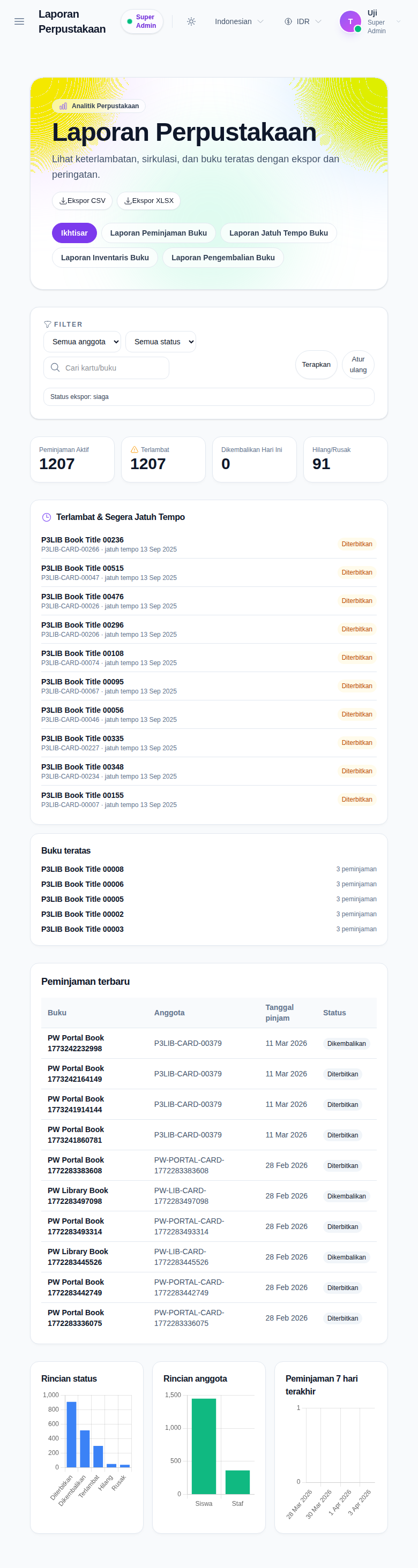
Open Library Reports from the Library menu. The current workspace combines five report branches on one page:
- Overview
- Book Issue Report
- Book Due Report
- Book Inventory Report
- Book Issue Return Report
The action area at the top supports:
- Export CSV
- Export XLSX
- Export PDF on the issues report
Step 2: Use the Overview branch for circulation health and alerts
The Overview branch is the analytics-first starting point. It currently includes:
- summary cards for active issues, overdue, returned today, and lost or damaged
- an Overdue & Due Soon list
- a Top books ranking
- a Recent issues table
- chart blocks for status breakdown, member breakdown, and issues in the last 7 days
Use this branch when you need a fast answer to questions like:
- Are overdue items climbing?
- Which books are seeing the heaviest demand?
- Is circulation concentrated in one member type?
Step 3: Apply the filters that belong to the current report branch
The filter bar is route-backed, so the URL reflects the current report state.
Common filter patterns in the current UI include:
- All members
- All status
- Search
- date range fields
- due-date range fields
- active-book state
- Apply
- Reset
The active branch controls which filters appear:
- Overview and Issues can use member type, status, and search
- Due uses member type, search, and due-date range
- Inventory uses active-book state, search, and post-date range
- Issue Returns uses member type, search, and date range
Step 4: Move into a table-driven branch when you need raw rows
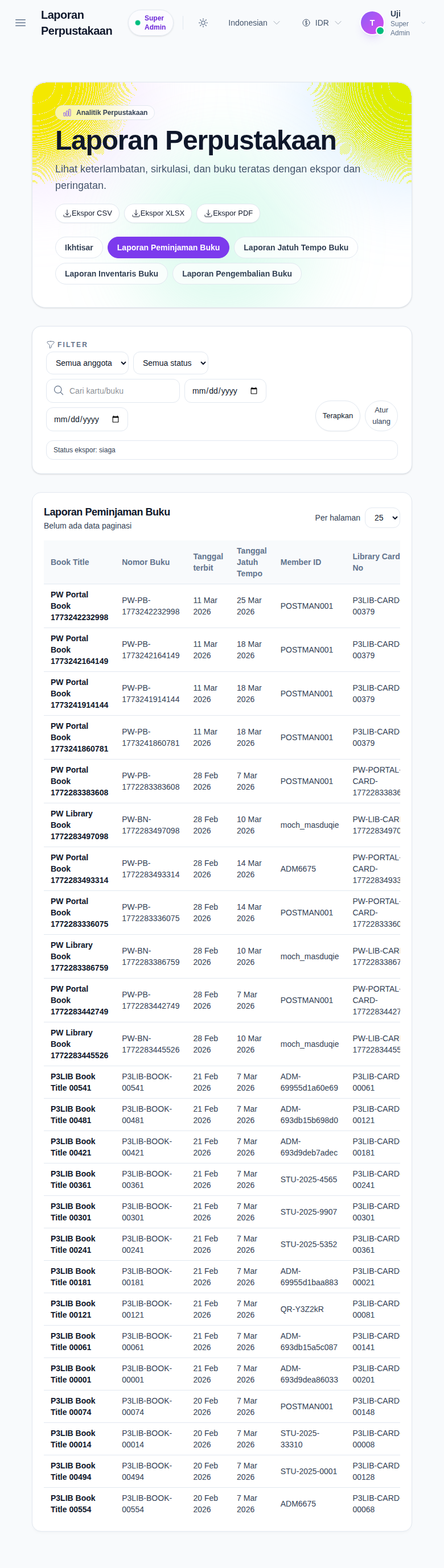
The non-overview branches present a paginated table plus a per-page selector.
Typical use cases:
- Book Issue Report for current issue rows and status values
- Book Due Report for due-date-focused follow-up rows
- Book Inventory Report for title, ISBN, stock, availability, and cost fields
- Book Issue Return Report for return-date-focused circulation history
Step 5: Queue exports only after the report state is correct
The export banner below the filters reports the current export stage, such as:
- idle
- queued
- downloading
- ready
- failed
Use exports after the branch and filters are final:
- CSV and XLSX are available throughout the workspace
- PDF is available on the Book Issue Report branch
Because the exports are tied to the current route-backed filters, changing the branch or filters changes what the exported file will contain.
Verify the result
Use this checklist after your review:
- confirm the selected branch matches the report question you are answering
- confirm the filters visible on screen belong to that branch
- confirm the rows, cards, or charts reflect the current report state
- confirm the export-state banner reports the expected status after queueing an export
Expected result: you can move between overview analytics and table-driven library reports, keep the filters aligned with the branch you selected, and export the current report state accurately.
Troubleshooting
| Issue | Likely cause | What to do |
|---|---|---|
| The wrong filters are showing | You switched to a different branch | Recheck the active tab because the filter bar changes by report branch |
| The report table is empty | The current branch and filters are too narrow | Reset filters, then apply only the fields you actually need |
| PDF export is missing | You are not on the Book Issue Report branch | Move to Book Issue Report to expose the PDF action |
| Export did not download immediately | The export runs through a queued flow | Watch the export-state banner and retry only if it reaches a failed state |
| Inventory counts look off | You are reviewing the wrong branch | Use Book Inventory Report when you need stock and availability, not the issues or due branches |