This guide explains how to use the Type tab in Fees Setup to create the fee-type records later attached to fee masters.
Short summary
Use Fee Types to define the specific billing item label and code that will appear again in fee masters and collection workflows. The current tab keeps the form and list-management controls in one shared workspace.
Before you start
- Decide the full display label for the type.
- Decide a short internal Code that remains stable over time.
- Keep inactive legacy types instead of deleting them if historical finance records may still reference them.
Navigation path
Fees Setup -> Type
Step 1: Open the Type tab
In the sidebar, open Fees Setup, then choose Type.
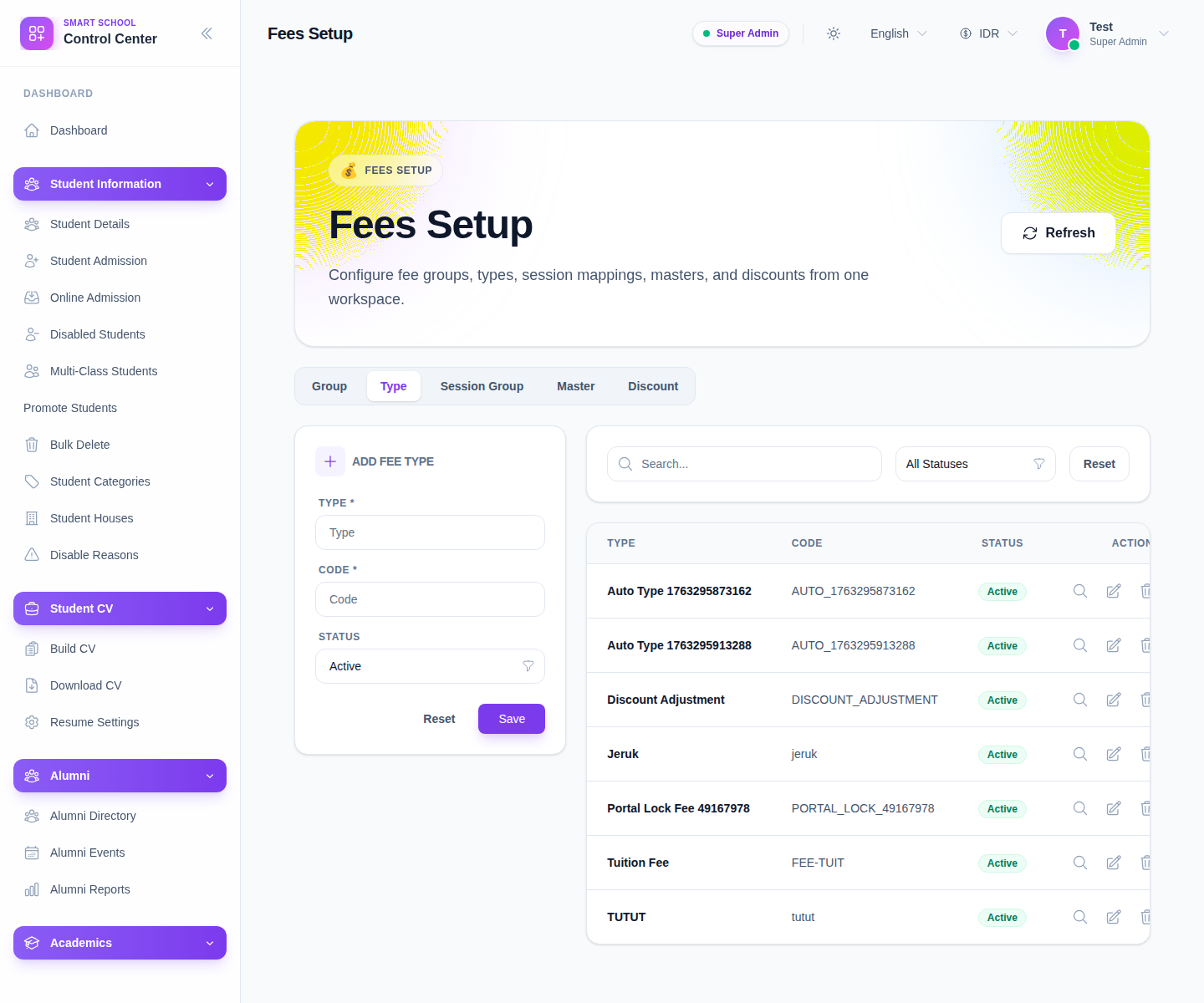
The visible form shows:
- Type
- Code
- Status
Step 2: Create a fee type
Enter the new type details:
- fill Type
- fill Code
- choose Status
- click Save
Treat the code as the clean short identifier for the type. This helps later when finance teams scan filters, exports, or dense table layouts.
Step 3: Review the type list
After saving, inspect the table on the right. The current columns are:
- Type
- Code
- Status
- Actions
This table is the main place to confirm whether the type is ready for later use in fee masters.
Step 4: Filter active and inactive types
The current workspace includes:
- a Search field
- a Status filter
Use these controls to separate active production types from older or archived rows in the local dataset.
Step 5: Edit or retire old types safely
Use Edit when:
- the label needs to be clarified
- the code does not match your internal convention
- the wrong active state was selected
When a type should no longer be used for new work, prefer marking it inactive rather than deleting it immediately. That is safer when the type might already be referenced in prior fee-master records.
Verify the result
- the row appears in the table with the correct Type
- the Code is readable and unique enough for operations
- the Status matches whether the type should still be offered
- the type is ready to be selected from the fee-master workflow
Troubleshooting
| Issue | Likely cause | What to do |
|---|---|---|
| Type does not appear after saving | Filters are still active or the form was incomplete | Reset the list filters and recheck the required fields |
| Code is confusing in later lists | The short code is too vague | Edit the row before using it in fee masters |
| Old types clutter the list | Legacy and active rows are mixed together | Use the status filter and mark obsolete rows inactive |
| Team members reuse inconsistent names | No naming convention was agreed first | Standardize labels and codes before scaling the setup |