This guide covers the Staff Directory entry workflow for creating and saving staff records in the HR area.
Short summary
From the Staff Directory page, you can add a staff member with required identity and access fields, then verify it appears in the directory list with the selected department, designation, and role metadata.
Before you start
- Confirm you have the correct department, designation, and role values for the staff member.
- Prepare employee ID and a temporary password that meets your policy.
- Confirm the staff email is unique in the current school account context.
Navigation path
HR -> Staff Directory
Step 1: Open Staff Directory
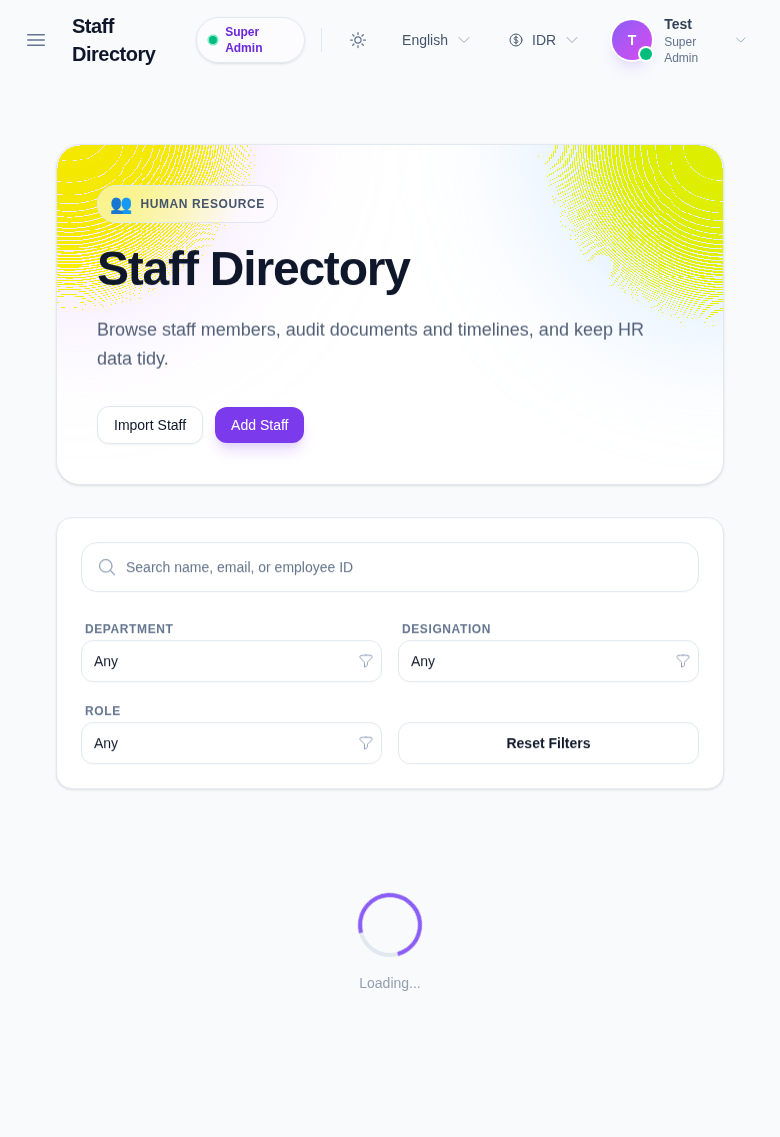
Go to Human Resource and open Staff Directory.
Step 2: Set directory filters (optional)
If you are checking existing records first, use the filter bar before adding a new staff member:
- Search
- Department
- Designation
- Role
Then click reset filters to return to the full view when needed.
Step 3: Open the Add Staff form
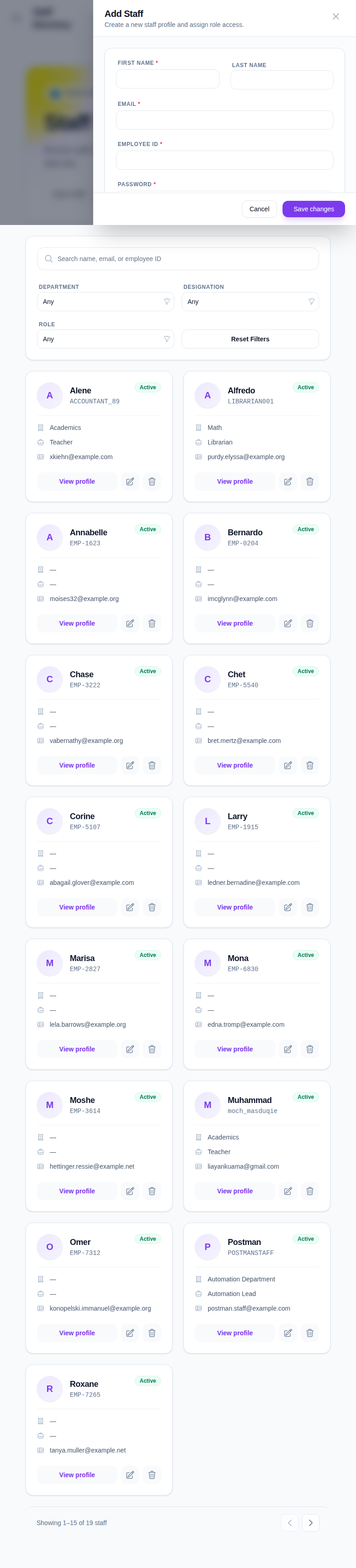
Click Add Staff.
Step 4: Complete required profile fields
Fill the required fields:
- First Name (required)
- Email (required)
- Employee ID (required)
- Password (required)
Add optional details as required:
- Last Name
- Contact number
- Department
- Designation
- Role
- Status
Step 5: Save staff record
- Review all values for accuracy.
- Click Save changes.
- Return to the list and verify the staff member appears with the correct labels (department/designation/role/status).
Important notes
Important: email and employee ID are identity fields used by downstream workflows. Keep them unique and verify before saving to avoid duplicate/conflict states.
Verification checklist
- Staff profile includes the intended first name and employee ID.
- Staff email and status are correct.
- The staff appears in list filters matching their assigned department/designation/role.
- If needed, repeat with Import Staff when adding multiple people.
Expected result: staff directory includes the new staff entry and it is searchable with the selected role/department context.
Troubleshooting
| Issue | Likely cause | What to do |
|---|---|---|
| Save does not complete | Required identity field is missing | Re-check required fields: First Name, Email, Employee ID, Password |
| Staff not found after saving | You are filtered into another department/role context | Clear filters and search by email or employee ID |
| Email is rejected | Email format is invalid or already in use | Use a valid unique school email format |
| Role or designation not visible | Field values were not selected at create time | Open entry and confirm profile metadata was filled correctly |