This guide explains the Front CMS → Notices workspace. Notices are short public announcements that schools publish on the FrontCMS site.
Before you start
- Decide the notice date and the wording before creating the record.
- Confirm whether the notice should be published immediately.
- Prepare any media or supporting content if the notice needs a visual reference elsewhere in Front CMS.
Navigation path
Front CMS -> Notices
Step 1: Open the notices workspace
Open Front CMS in the sidebar and choose Notices.
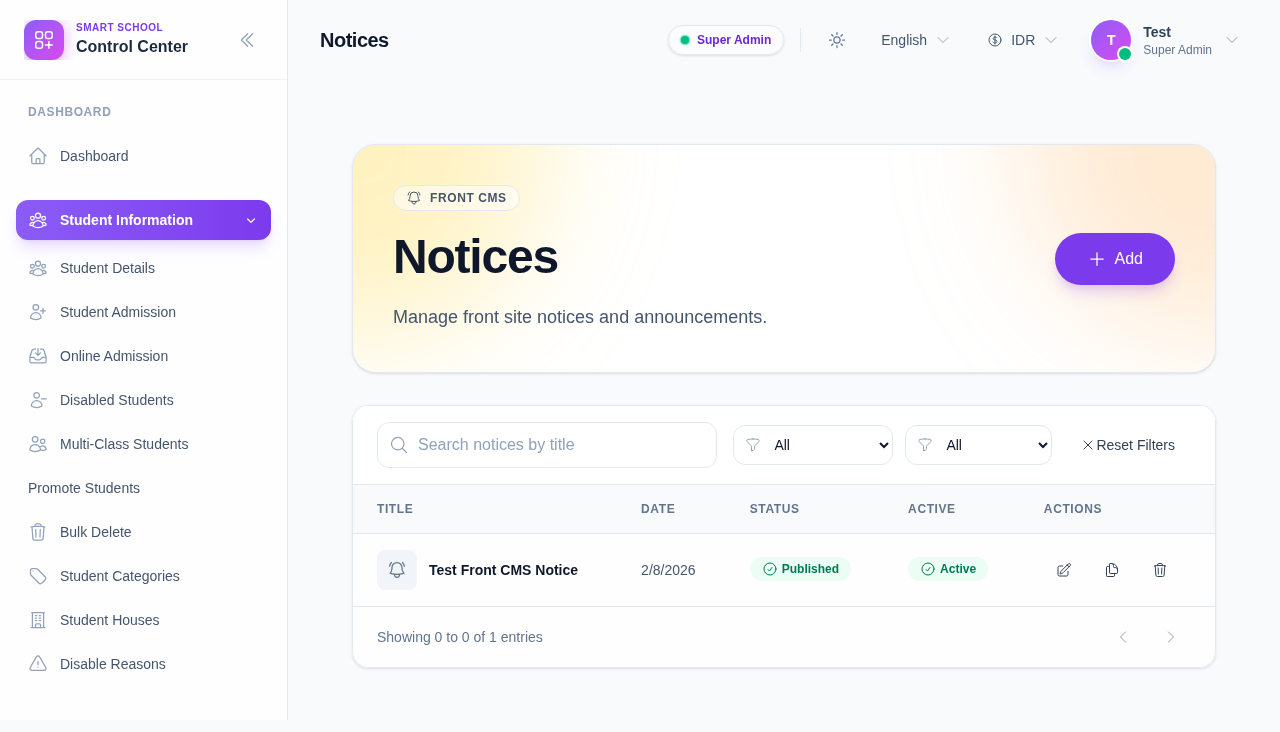
Step 2: Review the list and filters
The notices table supports:
- search
- status filtering
- published and active toggles
- edit, duplicate, and delete actions
Use the filters first when you are looking for an older notice instead of scrolling the full list.
Step 3: Add a notice
Click Add to open the notice drawer.
Fill in the required information:
- title
- notice date
- description
Then decide whether the notice should be published and active immediately.
Step 4: Edit, duplicate, or delete a notice
Use the row actions when you need to change an existing notice:
- Edit opens the drawer for the current record
- Duplicate creates a copy that you can adjust for a new announcement
- Delete removes the notice from the workspace and the public site
Step 5: Toggle status from the table
The status and active badges are clickable in the table.
Use them when you need a quick publish-state change without opening the drawer.
Verify the result
- The notice appears with the correct title and date.
- The publish badge matches the intended state.
- The active badge matches whether the notice should remain visible publicly.
Expected result: the notice list on the public FrontCMS site shows the new announcement with the correct state and date.
Troubleshooting
| Issue | Likely cause | What to do |
|---|---|---|
| Notice does not appear publicly | It was saved as draft or inactive | Reopen the record and enable publish or active |
| Date looks wrong | The notice date was entered incorrectly | Edit the notice and correct the date field |
| Duplicate notice keeps old text | The copied record still contains the original content | Edit the duplicate before publishing |