This guide explains how to use the current Examinations workspace for offline exam reporting. In the remediated product, reporting is not a separate standalone page. It lives inside the main examination workspace through the Rank Report and Print & Email tabs.
Before you start
- Confirm the exam group and exam you want to review.
- Make sure the exam already has subjects and enrolled students if you need rank output.
- If you want printable documents, make sure the required print templates are already configured.
Navigation path
Examinations
Step 1: Open the Examinations workspace
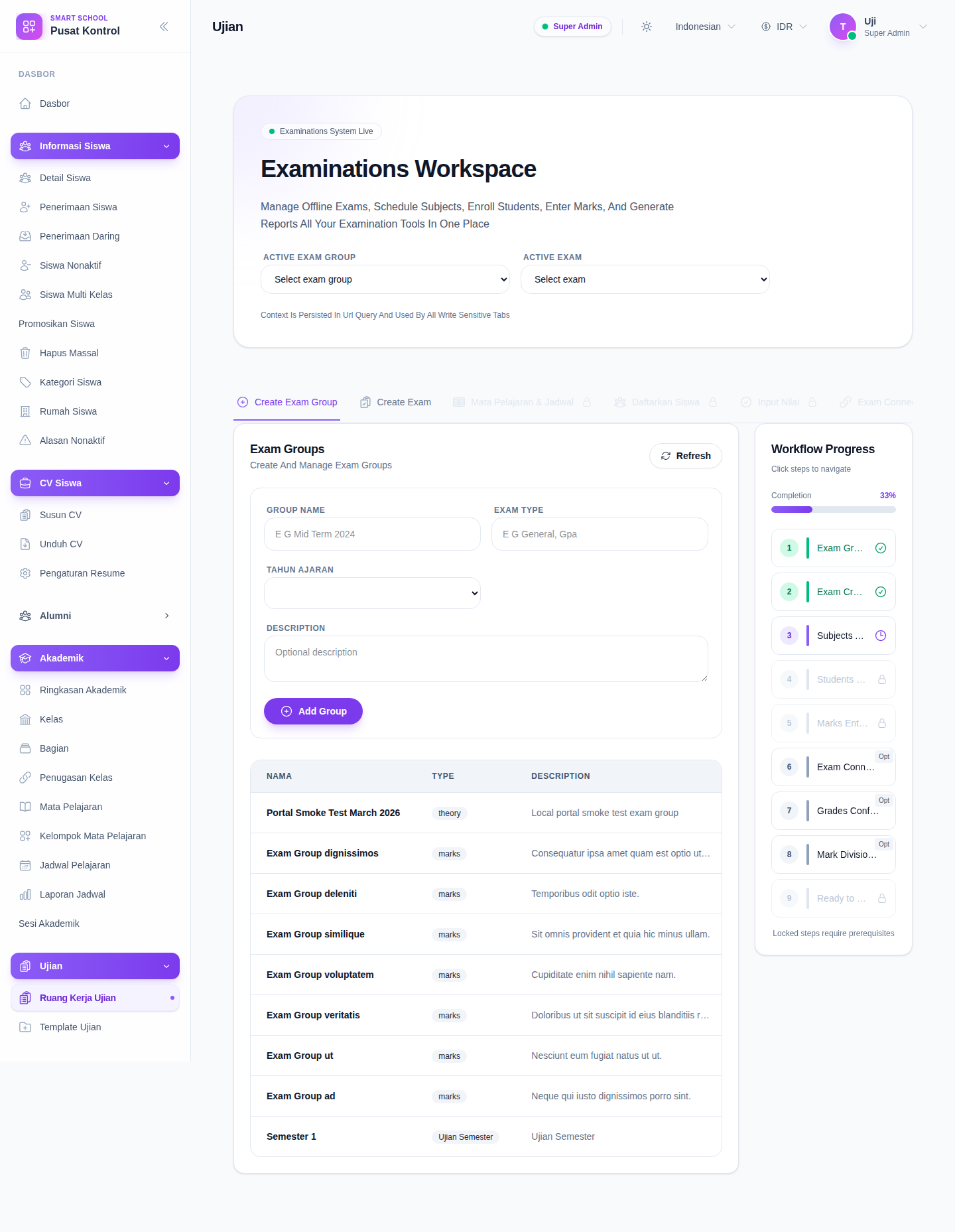
Open the main Examinations workspace. The reporting entry points are part of the same workflow-driven page.
Step 2: Set the exam context
The workspace uses two shared selectors at the top:
- Active Exam Group
- Active Exam
That context is written into the page query and reused by the reporting tabs. If the exam context is missing, the report tabs cannot produce a meaningful result.
Step 3: Review the Rank Report tab
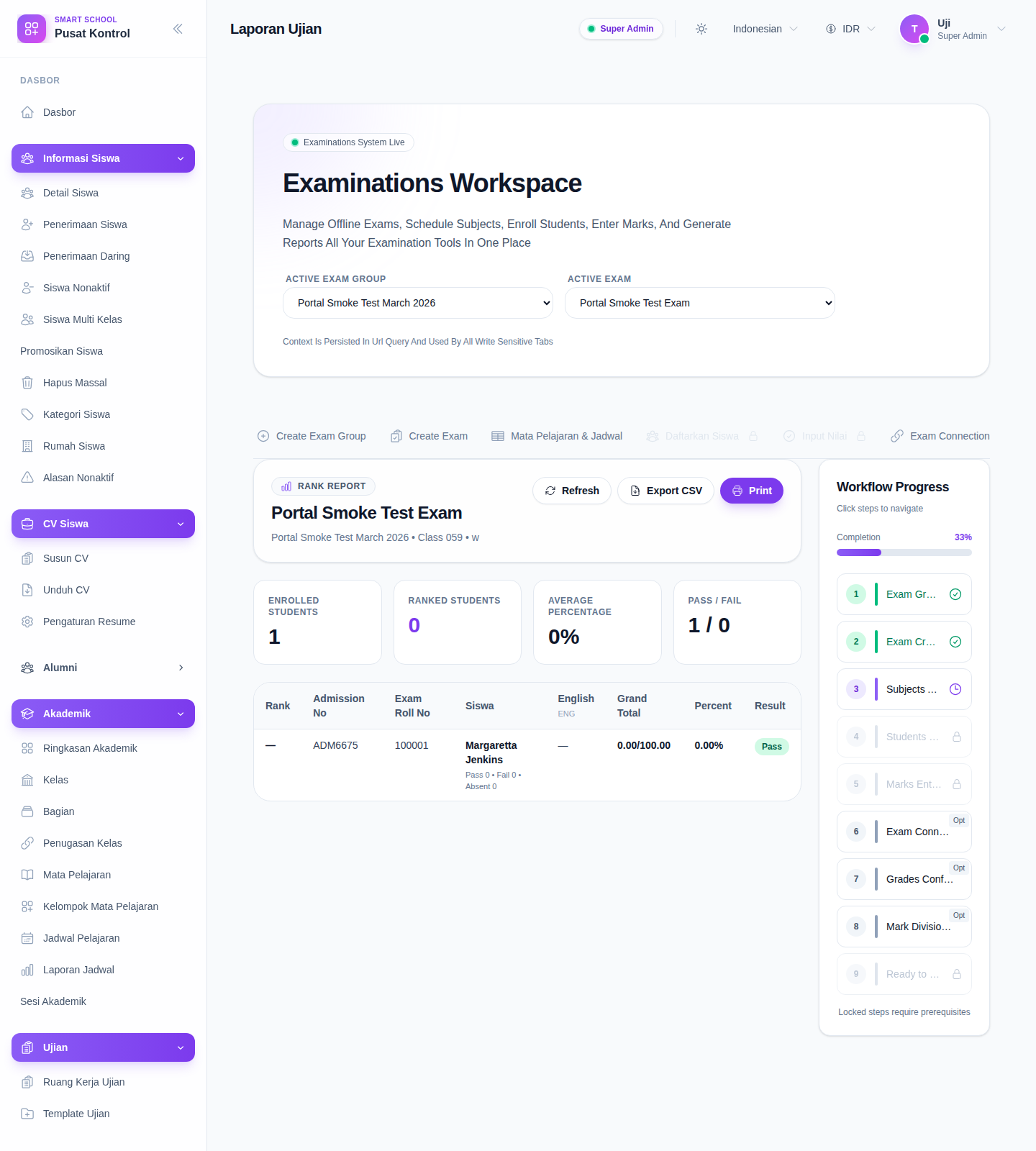
Use Rank Report when you need one exam-scoped result table with ranking, subject scores, totals, percentages, and pass/fail status.
The current rank panel provides:
- Refresh
- Export CSV
- summary cards for enrolled students, ranked students, average percentage, and pass/fail
- a subject-aware table with rank, admission number, exam roll number, marks, total, percentage, and result
Step 4: Configure the Print & Email panel
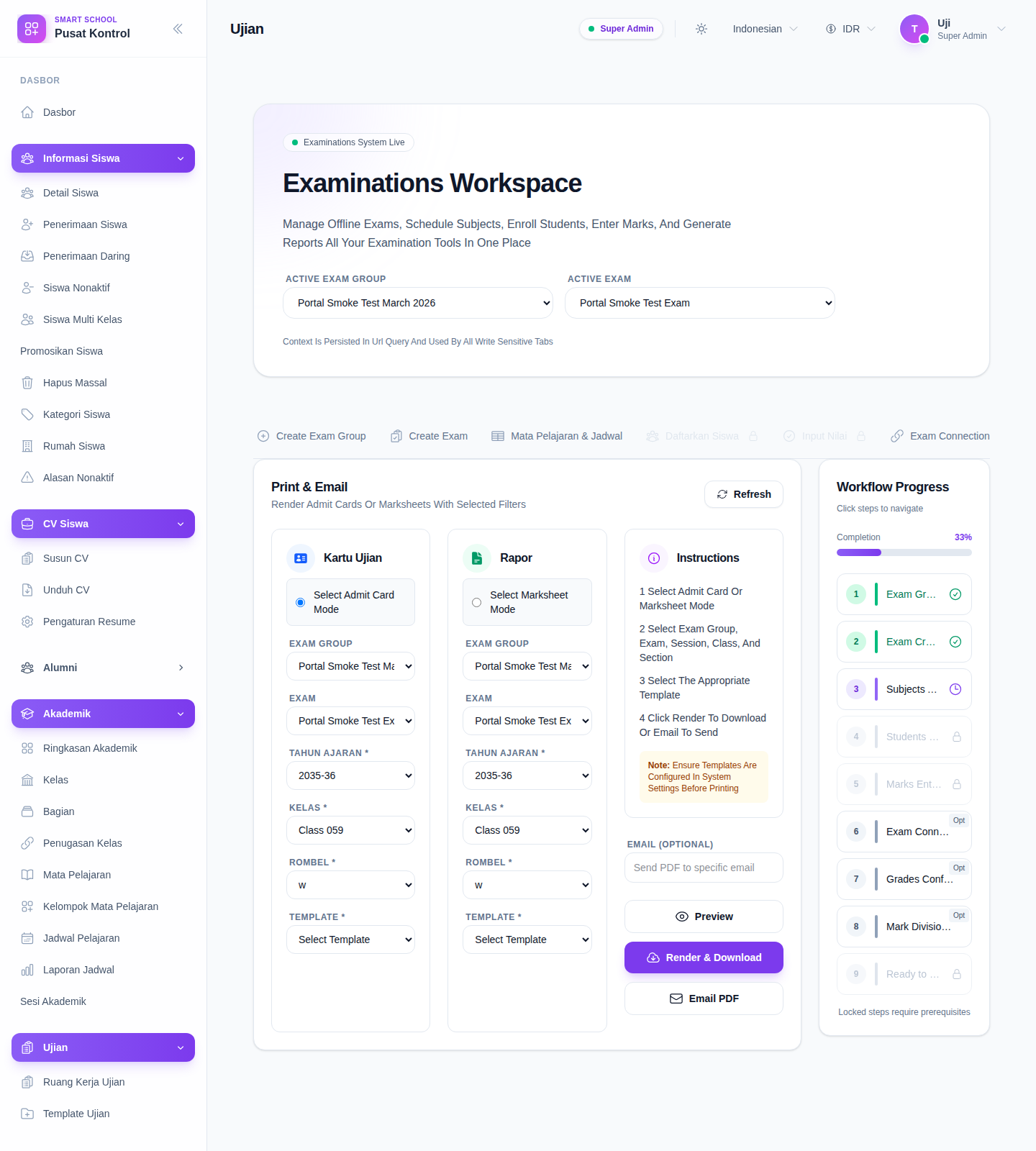
Use Print & Email when you need to prepare:
- Admit Card
- Marksheet
The panel lets you configure:
- exam group
- exam
- session
- class
- section
- template
- optional recipient email
It also provides:
- Preview
- Render & Download
- Email PDF
Step 5: Use the panel for the right document workflow
Choose Admit Card when you need student entry documents before the exam.
Choose Marksheet when you need result-sheet generation after the exam workflow is ready.
Preview first when you want to confirm the student set and exam context before downloading or emailing the PDF.
Verify the result
- the correct exam group and exam are selected
- the rank report matches the intended exam context
- the print panel uses the intended document mode
- the session, class, and section values match the selected exam
- export, print, preview, or email actions apply to the same exam context
Troubleshooting
| Issue | Likely cause | What to do |
|---|---|---|
| The rank panel shows an error | The selected exam has no exam subjects or usable ranking data | Verify subjects, enrollment, and marks for that exam first |
| Rank data looks empty | The selected exam has enrolled students but no ranked output yet | Check marks entry and rank-generation readiness |
| Print or render is blocked | Required session, class, section, exam, or template inputs are missing | Complete the required inputs, then preview or render again |
| The document still cannot be generated | Templates are not configured or another exam constraint is blocking output | Review exam template setup and any fee or eligibility warnings shown in the panel |